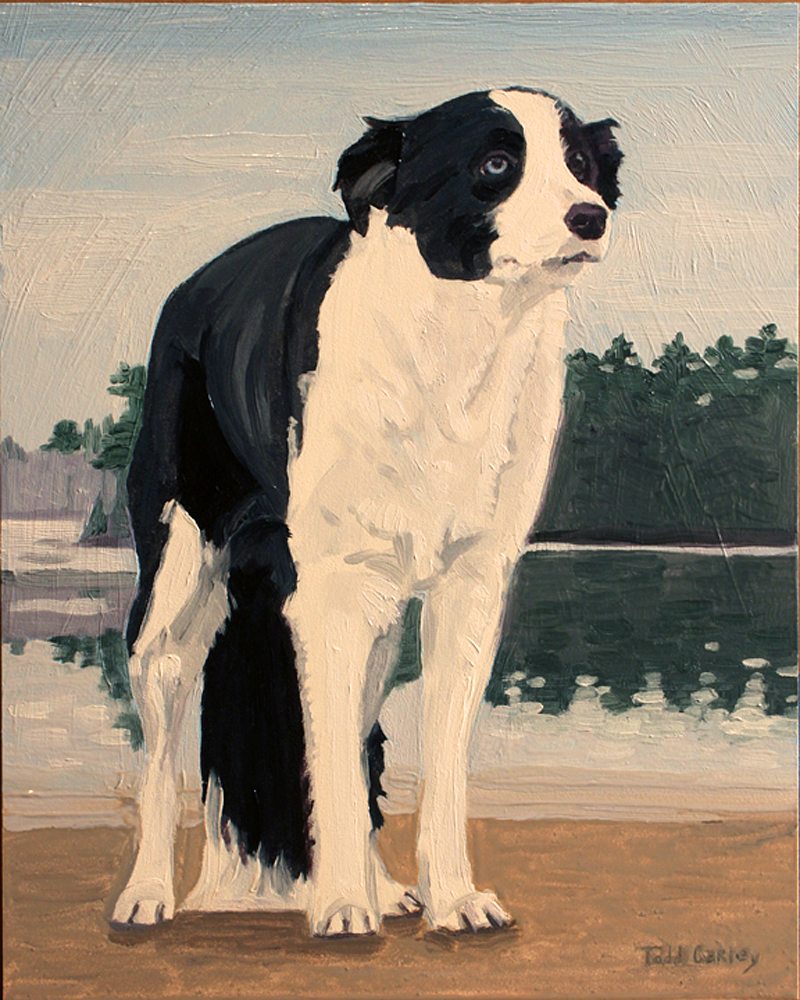
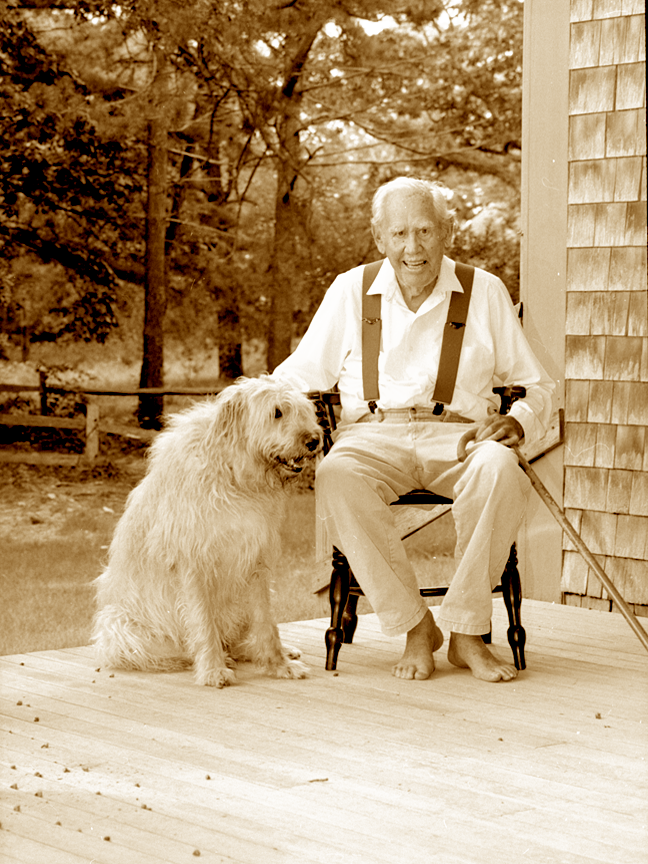
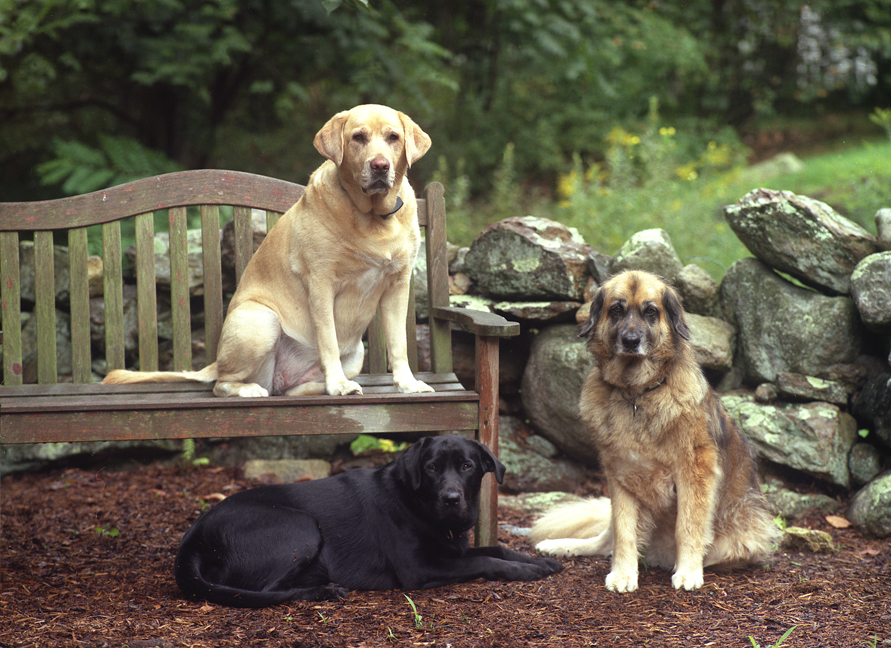
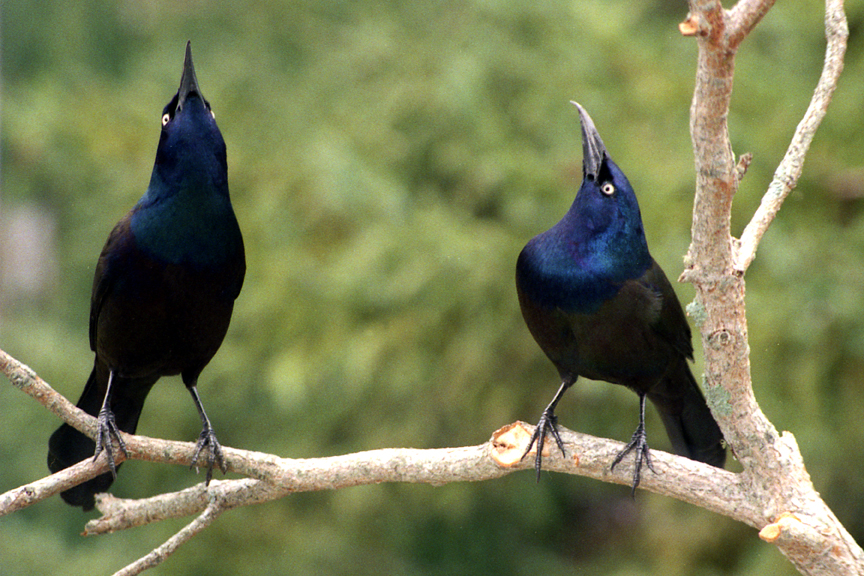
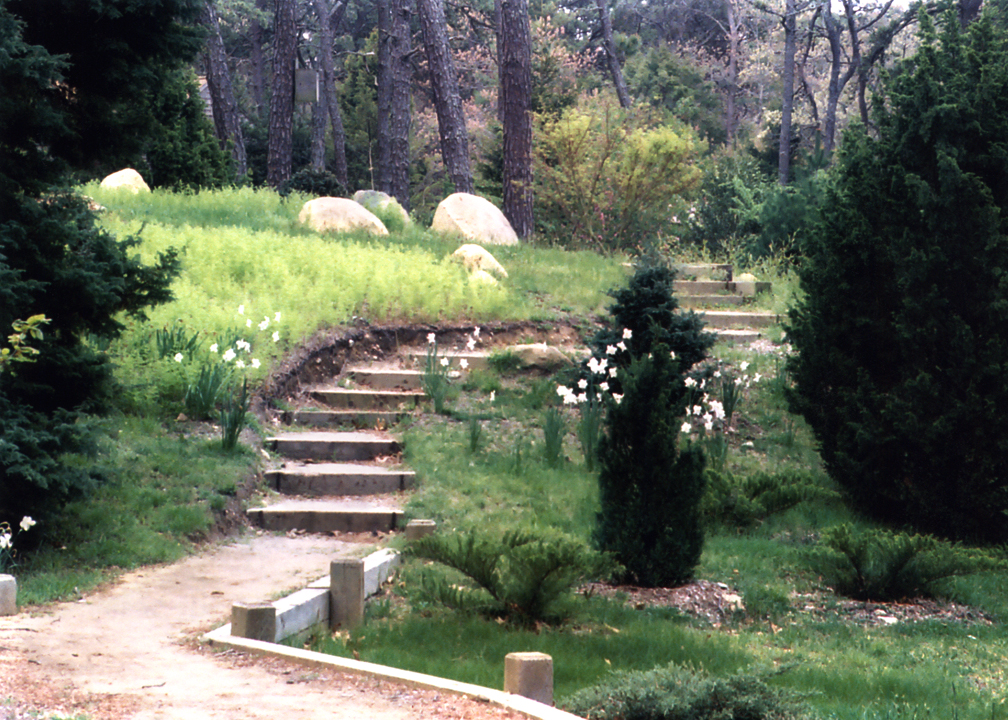
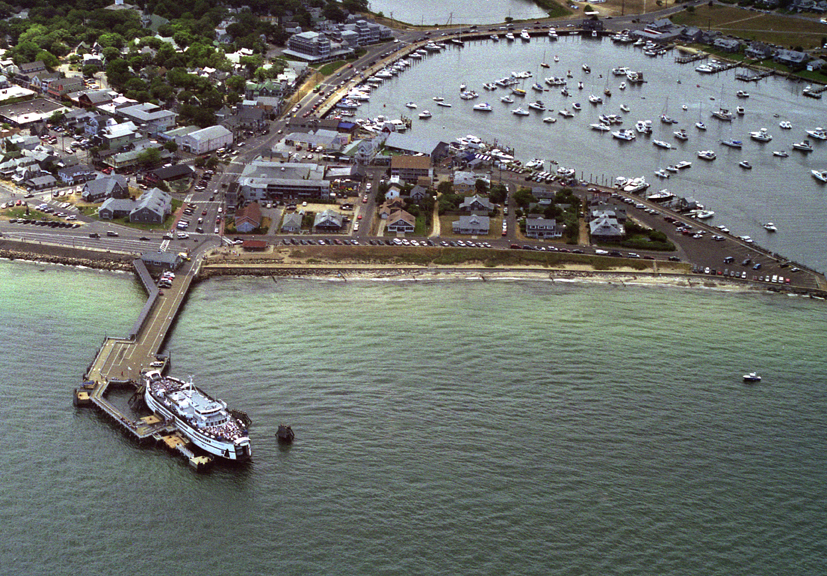
With ART compression
Without ART compression

Those pesky ART files:
     AOL's servers by default further compress JPEGs and GIFs (image formats which are already compressed) into their file format with the extension .ART. The ART format compresses images to a fraction of their former file size. This is done to speed up download times, but results in significant image quality degradation that the artist or web designer never intended. In reality download time is not significantly reduced, and carefully designed graphics end up looking like they were left out in the rain overnight. Furthermore, the ART file format is essentially unrecognized and undocumented. That makes it difficult to find out important information like what they are, how to turn them off, or why they are incompatible with every image editor and paint program out there.

     The images above are in PNG format, which AOL does not compress. They show what images look like with and without AOL's ART compression. If you are using AOL's browser and want to know if your graphics are ART files, right-click the jpeg to the right (CRTL click on a Mac). Choose "Save Picture As." In the "Save as type" field it will say either JPEG or ART. If it says ART, your graphics are getting further compressed by AOL.

     Windows 2000 has ART file support available. Also, I have read (but not tested) that MSIE 5.x (including Outlook Express 5) can view ART files if you have a plugin installed available on Windows Update. Once you can view the file, you can take a screen shot of the image, and save it however you like. To copy a screen shot to the clipboard on a PC, hold down the key with the windows or similar icon, and press "print screen." The contents of the screen can be pasted to an editor like photoshop. You can save ART files in other formats, like bitmaps (.BMP), but you will be saving the ART compression along with it.

     It is possible to get around the ART compression problem. The easiest way is to use another browser, like Internet Explorer or Netscape. Another browser can be run while AOL is used simply for Internet access. Using any other ISP works too. At this point, deleting your Temporary Internet Files prevents ART files from reappearing when viewing recently visited sites. You can also turn off AOL's compression. The method varies a little between versions of AOL.

To turn off AOL's compression:
1. Click "Settings" (or "My AOL" in earlier versions) in the menu bar, then select "Preferences."
2. Click "WWW."
3. Select the "Web Graphics" tab.
4. Select "Never Compress Graphics" (or uncheck "Use Compressed Graphics" in earlier versions)
5. Click "OK" and close the window.


To delete your Temporary Internet Files:
(in order to keep ART files from reappearing when viewing recently visited sites)
1. Click "My AOL" or "Settings" in the menu bar, then select "Preferences."
2. Click "WWW."
3. On the "General" tab, under "Temporary Internet Files," click "Delete Files."
4. Check "Delete All Offline Content" (varies in earlier versions)
5. Click "OK."


Ways to get your graphics displayed as intended:
1. Using the lossless and highly compressed PNG file format, which AOL does not compress. Not all browsers support it yet.
2. Build a web site without regard to the AOL browser's shortcomings and include an ART file info page.

I'm interested in any feedback on this or any topic. Feel free to drop me a note.


Home    Info    Portfolio    Restoration    Links    Contact    Music
© Todd Carley. Tuesday March 09 2010. Please this site.
Visitors since 4/2001: